Using F# for development and devops scripts

https://swlaschin.gitbooks.io/fsharpforfunandprofit/content/posts/low-risk-ways-to-use-fsharp-at-work-2.html

Part 2: Using F# for development and devops scripts 使用 F# 进行开发和 devops 脚本

下一组建议涉及将 F# 用于围绕开发活动的各种脚本:构建、持续集成、部署等。

对于这些类型的小任务,您需要一种带有 REPL 的良好脚本语言。您可以使用 PowerShell、ScriptCS,甚至 Python。但为什么不试一试 F#?

  • F# 感觉像 Python 一样轻巧(很少或没有类型声明)。

  • F# 可以访问 .NET 库,包括核心库和通过 NuGet 下载的库。

  • F# 具有类型提供程序(相对于 PowerShell 和 ScriptCS 的一大优势),可让您轻松访问各种数据源。

  • 所有这一切都以简洁、类型安全的方式进行,还带有智能感知!

以这种方式使用 F# 将允许您和您的开发人员使用 F# 代码来解决实际问题。对于这种低风险方法,经理们不应该有任何抵制——在最坏的情况下,您可以轻松地切换到使用不同的工具。

当然,一个隐藏的好处是,一旦您的开发人员同事有机会使用 F#,他们就会上瘾,并且您离使用 F# 端到端又近了一步!

您可以使用 F# 脚本做什么?

在接下来的几节中,我们将看到 F# 脚本的三个示例:

当然,你也可以将F#脚本与几乎所有的.NET库集成。下面是其他可以用脚本编写的实用程序的建议:

  • 简单的文件复制、目录遍历和归档(例如日志文件)。如果您使用的是 .NET 4.5或更高版本,则可以使用新的 System.IO.Compression.ZipArchive 类进行压缩和解压缩,而无需第三方库。

  • 使用 JSON 解决问题,无论是已知格式(使用 JSON Type Provider)还是未知格式(使用 JSON 解析器)。

  • 与 GitHub 交互使用 Octokit.

  • 从Excel中提取数据,或在其中操作数据。F#支持COM来做Office自动化,或者你可以使用其中一个类型提供者或库。

  • 使用 Math.NET 进行数学计算

  • Web 抓取、链接检查和屏幕抓取。内置的异步工作流和代理使得这种“多线程”代码非常容易编写。

  • 使用 Quartz.NET 来进行任务调度

如果这些建议激起了您的兴趣,并且您想要更多地使用 F#,请查看 F# 社区项目页面。它是为 F# 编写的有用库的重要来源,其中大部分都可以很好地与 F# 脚本一起使用。

Debug F# 脚本

使用 F# 脚本的一个好处是您不需要创建整个项目,也不需要启动 Visual Studio。

但是,如果您需要调试脚本,而你也不使用 Visual Studio ,那该怎么办呢?以下是一些提示:

  • 首先可以尝试用 printf 把内容打印到 console 里,通常而言我会做一个简单的 log 函数来 warp 它,这样就可以简单的通过 flag 来控制是否开启打印

  • 你可以使用FsEye工具来检查和观察交互式会话中的变量。(译:这个工具不一定能用了,看了一下最近更新是 Oct. 18, 2016)

  • 最后,你仍然可以使用Visual Studio调试器。诀窍是将调试器附加到fsi.exe进程中,然后你可以使用Debugger.Break在某一点上停止。

5. 将 FAKE 用于构建和 CI 脚本

这部分的代码在 available on github.

让我们从 FAKE 开始,它是一个用 F# 编写的跨平台构建自动化工具,类似于 Ruby 的 Rake

FAKE 内置了对 git、NuGet、单元测试、Octopus Deploy、Xamarin 等的支持,可以轻松开发具有依赖关系的复杂脚本。

您甚至可以将它与 TFS 一起使用以避免使用 XAML

使用 FAKE 而不是类似 Rake 的原因之一是您可以在整个工具链中标准化 .NET 代码。理论上,你可以用NAnt来代替,但实际上,不用了,因为XML。PSake也是一种可能性,但我认为比FAKE更复杂。

您还可以使用 FAKE 删除特定构建服务器上的依赖项。例如,与其使用 TeamCity 的集成来运行测试和其他任务,不如考虑在 FAKE 中执行它们,这意味着您可以在不安装 TeamCity 的情况下运行完整构建。

这是一个非常简单的 FAKE 脚本示例,摘自 FAKE 站点上更详细的示例

// Include Fake lib
// Assumes NuGet has been used to fetch the FAKE libraries
#r "packages/FAKE/tools/FakeLib.dll"
open Fake

// Properties
let buildDir = "./build/"

// Targets
Target "Clean" (fun _ ->
    CleanDir buildDir
)

Target "Default" (fun _ ->
    trace "Hello World from FAKE"
)

// Dependencies
"Clean"
  ==> "Default"

// start build
RunTargetOrDefault "Default"

语法需要一点时间来适应,但这种努力是值得的。

关于 FAKE 的进一步材料:

6. 用于检查网站是否响应的 F# 脚本

这部分的代码 available on github.

此脚本检查网站是否以 200 响应。例如,这可能用作部署后的 smoke test 的基础。

// Requires FSharp.Data under script directory 
//    nuget install FSharp.Data -o Packages -ExcludeVersion  
#r @"Packages\FSharp.Data\lib\net40\FSharp.Data.dll"
open FSharp.Data

let queryServer uri queryParams = 
    try
        let response = Http.Request(uri, query=queryParams, silentHttpErrors = true)
        Some response 
    with
    | :? System.Net.WebException as ex -> None

let sendAlert uri message = 
    // send alert via email, say
    printfn "Error for %s. Message=%O" uri message

let checkServer (uri,queryParams) = 
    match queryServer uri queryParams with
    | Some response -> 
        printfn "Response for %s is %O" uri response.StatusCode 
        if (response.StatusCode <> 200) then
            sendAlert uri response.StatusCode 
    | None -> 
        sendAlert uri "No response"

// test the sites    
let google = "http://google.com", ["q","fsharp"]
let bad = "http://example.bad", []

[google;bad]
|> List.iter checkServer

结果是:

Response for http://google.com is 200
Error for http://example.bad. Message=No response

请注意,我在 Fsharp.Data 中使用 Http 实用程序代码,它提供了一个很好的 HttpClient 客户端。 更多关于 HttpUtilities 的信息。

7. 将 RSS 流转换为 CSV 的 F# 脚本

The code for this section is available on github.

下面是一个使用 Xml 类型提供程序解析 RSS 提要(在本例中为 StackOverflow 上的 F# 问题)并将其转换为 CSV 文件以供以后分析的小脚本。

请注意,RSS解析代码只有一行代码! 大部分的代码都是关于写CSV的。是的,我可以使用一个CSV库(NuGet上有很多),但我想我应该让它保持原样,向你展示它是多么简单。

// sets the current directory to be same as the script directory
System.IO.Directory.SetCurrentDirectory (__SOURCE_DIRECTORY__)

// Requires FSharp.Data under script directory 
//    nuget install FSharp.Data -o Packages -ExcludeVersion 
#r @"Packages\FSharp.Data\lib\net40\FSharp.Data.dll"
#r "System.Xml.Linq.dll"
open FSharp.Data

type Rss = XmlProvider<"http://stackoverflow.com/feeds/tag/f%23">

// prepare a string for writing to CSV            
let prepareStr obj =
    obj.ToString()
     .Replace("\"","\"\"") // replace single with double quotes
     |> sprintf "\"%s\""   // surround with quotes

// convert a list of strings to a CSV
let listToCsv list =
    let combine s1 s2 = s1 + "," + s2
    list 
    |> Seq.map prepareStr 
    |> Seq.reduce combine 

// extract fields from Entry
let extractFields (entry:Rss.Entry) = 
    [entry.Title.Value; 
     entry.Author.Name; 
     entry.Published.ToShortDateString()]

// write the lines to a file
do 
    use writer = new System.IO.StreamWriter("fsharp-questions.csv")
    let feed = Rss.GetSample()
    feed.Entries
    |> Seq.map (extractFields >> listToCsv)
    |> Seq.iter writer.WriteLine
    // writer will be closed automatically at the end of this scope

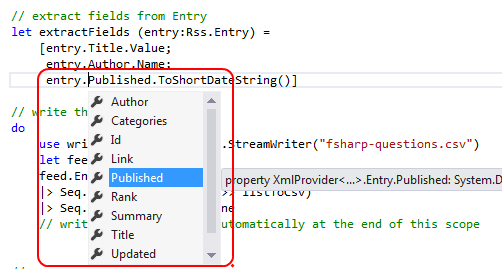
请注意,类型提供程序会生成智能感知(如下所示)以根据提要的实际内容向您显示可用的属性。这很酷。
结果是这样的:

"Optimising F# answer for Euler #4","DropTheTable","18/04/2014"
"How to execute a function, that creates a lot of objects, in parallel?","Lawrence Woodman","01/04/2014"
"How to invoke a user defined function using R Type Provider","Dave","19/04/2014"
"Two types that use themselves","trn","19/04/2014"
"How does function [x] -> ... work","egerhard","19/04/2014"

有关 XML 类型提供程序的更多信息,请见 FSharp.Data 页面.

8. 使用 WMI 检查进程统计信息的 F# 脚本

The code for this section is available on github.

如果您使用 Windows,那么能够访问 WMI 将非常有用。幸运的是,WMI 有一个 F# 类型的提供程序,可以轻松使用它。

在此示例中,我们将获取系统时间并检查进程的一些统计信息。例如,这在负载测试期间和之后可能很有用。

// sets the current directory to be same as the script directory
System.IO.Directory.SetCurrentDirectory (__SOURCE_DIRECTORY__)

// Requires FSharp.Management under script directory 
//    nuget install FSharp.Management -o Packages -ExcludeVersion 
#r @"System.Management.dll"
#r @"Packages\FSharp.Management\lib\net40\FSharp.Management.dll"
#r @"Packages\FSharp.Management\lib\net40\FSharp.Management.WMI.dll"

open FSharp.Management

// get data for the local machine
type Local = WmiProvider<"localhost">
let data = Local.GetDataContext()

// get the time and timezone on the machine
let time = data.Win32_UTCTime |> Seq.head
let tz = data.Win32_TimeZone |> Seq.head
printfn "Time=%O-%O-%O %O:%O:%O" time.Year time.Month time.Day time.Hour time.Minute time.Second 
printfn "Timezone=%O" tz.StandardName 

// find the "explorer" process
let explorerProc = 
    data.Win32_PerfFormattedData_PerfProc_Process
    |> Seq.find (fun proc -> proc.Name.Contains("explorer") )

// get stats about it
printfn "ElapsedTime=%O" explorerProc.ElapsedTime
printfn "ThreadCount=%O" explorerProc.ThreadCount
printfn "HandleCount=%O" explorerProc.HandleCount
printfn "WorkingSetPeak=%O" explorerProc.WorkingSetPeak
printfn "PageFileBytesPeak=%O" explorerProc.PageFileBytesPeak

输出是这样的:

Time=2014-4-20 14:2:35
Timezone=GMT Standard Time
ElapsedTime=2761906
ThreadCount=67
HandleCount=3700
WorkingSetPeak=168607744
PageFileBytesPeak=312565760

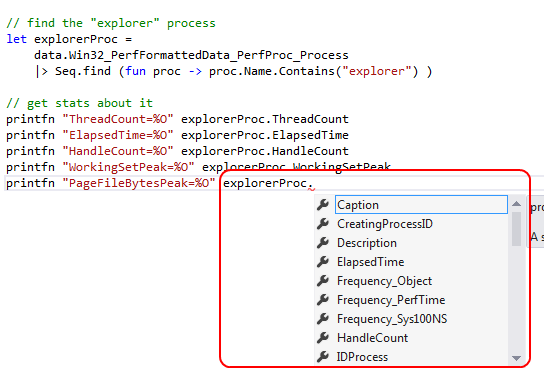
同样,使用类型提供程序意味着您可以获得智能感知(如下所示)。对于数百个 WMI 选项非常有用。
有关 WMI 类型提供程序的更多信息,请参见此处。More on the WMI type provider here.

9. 使用 F# 配置和管理云

一个值得特别提及的领域是使用 F# 来配置和管理云服务。 fsharp.org 上的云页面有许多有用的链接。

对于简单的脚本,Fog 是 Azure 的一个很好的封装。

因此,例如,要上传一个 blob,代码就这么简单:

UploadBlob "testcontainer" "testblob" "This is a test" |> ignore

或添加和接收消息:

AddMessage "testqueue" "This is a test message" |> ignore

let result = GetMessages "testqueue" 20 5
for m in result do
    DeleteMessage "testqueue" m

为此使用 F# 的特别好处是您可以在微型脚本中完成——您不需要任何繁重的工具。

总结

我希望你觉得这些建议有用。如果您在实践中应用它们,请在评论中告诉我。

接下来:使用 F# 进行测试。

Last updated