Twenty six low-risk ways to use F# at work
https://swlaschin.gitbooks.io/fsharpforfunandprofit/content/posts/low-risk-ways-to-use-fsharp-at-work.html
Getting started
如果您使用的是 Visual Studio,那么您已经安装了 F#,所以您可以开始了!无需征求任何人的许可。
如果您使用的是 Mac 或 Linux,您将需要做一些工作,唉(Mac 和 Linux 的说明)。
有两种交互式使用 F# 的方法:(1) 直接在 F# 交互式窗口中键入,或 (2) 创建 F# 脚本文件 (.FSX),然后运行代码脚本。
在 Visual Studio 中使用 F# 交互式窗口:
使用
Menu > View > Other Windows > F# Interactive使用
菜单 > 视图 > 其他窗口 > F# 交互窗口输入一个表达式,并使用双分号(;;)告诉解释器你已经完成了。
例如:
let x = 1
let y = 2
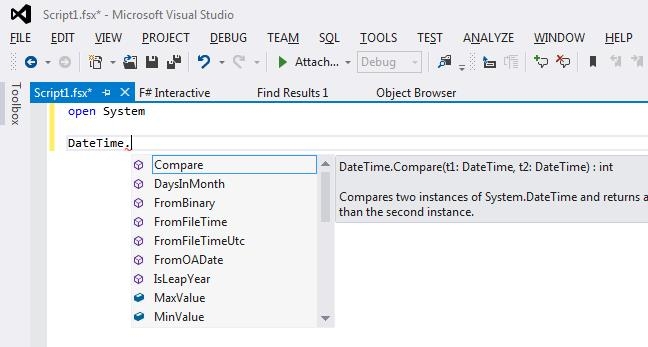
x + y;;就个人而言,我更喜欢创建一个脚本文件(文件 > 新建 > 文件,然后选择“F# 脚本”)并在其中键入代码,因为你可以获得自动完成和智能感知。

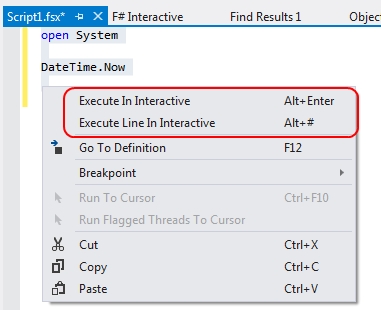
要运行一些代码片段,只需选中并右键单击,或简单地执行 Alt+Enter

使用外部库和 NuGet
大多数代码示例引用外部库,这些库应位于脚本目录下。
您可以显式下载或编译这些 DLL,但我认为从命令行使用 NuGet 更简单。
首先,你需要安装Chocolately(来自chocolatey.org)。
接下来使用安装 NuGet 命令行
cinst nuget.commandline最后,转到您的脚本文件的目录,并从命令行安装 NuGet 包。 例如,
nuget install FSharp.Data -o Packages -ExcludeVersion如您所见,在从脚本中使用 Nuget 包时,我更喜欢从中排除版本,这样我以后就可以在不破坏现有代码的情况下进行更新。
第 1 部分:使用 F# 以交互方式探索和开发
F#有价值的第一个领域是作为一个工具来交互式地探索.NET库。
以前,为了做到这一点,您可能已经创建了单元测试,然后使用调试器逐步执行它们以了解发生了什么。但是有了F#,你就不需要那么做了,直接运行代码就可以了。
让我们看一些例子。
1. 使用 F# 以交互方式探索 .NET
The code for this section is available on github.
当我编码时,我经常对 .NET 库的工作原理有一些疑问。
例如,以下是我最近使用 F# 交互式回答的一些问题:
我的自定义 DateTime 格式字符串是否正确?
XML 序列化如何处理本地 DateTimes 与 UTC DateTimes?
GetEnvironmentVariable区分大小写吗?
当然,所有这些问题都可以在 MSDN 文档中找到,但也可以通过运行一些简单的 F# 代码片段在几秒钟内得到解答,如下所示。
我的自定义 DateTime 格式字符串是否正确?
我想以自定义格式使用 24 小时制。我知道它是“h”,但它是大写还是小写的“h”?
open System
DateTime.Now.ToString("yyyy-MM-dd hh:mm") // "2014-04-18 01:08"
DateTime.Now.ToString("yyyy-MM-dd HH:mm") // "2014-04-18 13:09"XML 序列化如何处理本地 DateTimes 与 UTC DateTimes?
XML 序列化究竟如何处理日期?我们来看一下
// TIP: sets the current directory to be same as the script directory
System.IO.Directory.SetCurrentDirectory (__SOURCE_DIRECTORY__)
open System
[<CLIMutable>]
type DateSerTest = {Local:DateTime;Utc:DateTime}
let ser = new System.Xml.Serialization.XmlSerializer(typeof<DateSerTest>)
let testSerialization (dt:DateSerTest) =
let filename = "serialization.xml"
use fs = new IO.FileStream(filename , IO.FileMode.Create)
ser.Serialize(fs, o=dt)
fs.Close()
IO.File.ReadAllText(filename) |> printfn "%s"
let d = {
Local = DateTime.SpecifyKind(new DateTime(2014,7,4), DateTimeKind.Local)
Utc = DateTime.SpecifyKind(new DateTime(2014,7,4), DateTimeKind.Utc)
}
testSerialization d输出是:
<DateSerTest xmlns:xsi="http://www.w3.org/2001/XMLSchema-instance" xmlns:xsd="http://www.w3.org/2001/XMLSchema">
<Local>2014-07-04T00:00:00+01:00</Local>
<Utc>2014-07-04T00:00:00Z</Utc>
</DateSerTest>所以我可以看到它使用“Z”表示 UTC 时间。
GetEnvironmentVariable 区分大小写吗?
这可以用一个简单的片段来回答:
Environment.GetEnvironmentVariable "ProgramFiles" =
Environment.GetEnvironmentVariable "PROGRAMFILES"
// answer => true因此答案是“不区分大小写”。
2. 使用 F# 以交互方式测试您自己的代码
The code for this section is available on github.
当然,您并不局限于使用 .NET 库。有时测试您自己的代码可能非常有用。
为此,只需引用 DLL,然后打开命名空间,如下所示。
// set the current directory to be same as the script directory
System.IO.Directory.SetCurrentDirectory (__SOURCE_DIRECTORY__)
// pass in the relative path to the DLL
#r @"bin\debug\myapp.dll"
// open the namespace
open MyApp
// do something
MyApp.DoSomething()警告:在旧版本的 F# 中,打开对 DLL 的引用将锁定它,这样您就无法编译它!在这种情况下,在重新编译之前,请务必重置交互式会话以释放锁定。在较新版本的 F# 中,DLL 是隐式复制的,并且没有锁。
3. 使用 F# 以交互的方式使用 Web 服务
The code for this section is available on github.
如果您想使用 WebAPI 和 Owin 库,则无需创建可执行文件——您可以仅通过脚本来完成!
这涉及到一点设置,因为你将需要一些库的DLLs来使其工作。
因此,假设您已经设置了 NuGet 命令行(见上文),转到您的脚本目录,并通过以下方式安装自托管库 nuget install Microsoft.AspNet.WebApi.OwinSelfHost -o Packages -ExcludeVersion
一旦这些库到位,你可以使用下面的代码作为一个简单的WebAPI应用程序的骨架。
// sets the current directory to be same as the script directory
System.IO.Directory.SetCurrentDirectory (__SOURCE_DIRECTORY__)
// assumes nuget install Microsoft.AspNet.WebApi.OwinSelfHost has been run
// so that assemblies are available under the current directory
#r @"Packages\Owin\lib\net40\Owin.dll"
#r @"Packages\Microsoft.Owin\lib\net40\Microsoft.Owin.dll"
#r @"Packages\Microsoft.Owin.Host.HttpListener\lib\net40\Microsoft.Owin.Host.HttpListener.dll"
#r @"Packages\Microsoft.Owin.Hosting\lib\net40\Microsoft.Owin.Hosting.dll"
#r @"Packages\Microsoft.AspNet.WebApi.Owin\lib\net45\System.Web.Http.Owin.dll"
#r @"Packages\Microsoft.AspNet.WebApi.Core\lib\net45\System.Web.Http.dll"
#r @"Packages\Microsoft.AspNet.WebApi.Client\lib\net45\System.Net.Http.Formatting.dll"
#r @"Packages\Newtonsoft.Json\lib\net40\Newtonsoft.Json.dll"
#r "System.Net.Http.dll"
open System
open Owin
open Microsoft.Owin
open System.Web.Http
open System.Web.Http.Dispatcher
open System.Net.Http.Formatting
module OwinSelfhostSample =
/// a record to return
[<CLIMutable>]
type Greeting = { Text : string }
/// A simple Controller
type GreetingController() =
inherit ApiController()
// GET api/greeting
member this.Get() =
{Text="Hello!"}
/// Another Controller that parses URIs
type ValuesController() =
inherit ApiController()
// GET api/values
member this.Get() =
["value1";"value2"]
// GET api/values/5
member this.Get id =
sprintf "id is %i" id
// POST api/values
member this.Post ([<FromBody>]value:string) =
()
// PUT api/values/5
member this.Put(id:int, [<FromBody>]value:string) =
()
// DELETE api/values/5
member this.Delete(id:int) =
()
/// A helper class to store routes, etc.
type ApiRoute = { id : RouteParameter }
/// IMPORTANT: When running interactively, the controllers will not be found with error:
/// "No type was found that matches the controller named 'XXX'."
/// The fix is to override the ControllerResolver to use the current assembly
type ControllerResolver() =
inherit DefaultHttpControllerTypeResolver()
override this.GetControllerTypes (assembliesResolver:IAssembliesResolver) =
let t = typeof<System.Web.Http.Controllers.IHttpController>
System.Reflection.Assembly.GetExecutingAssembly().GetTypes()
|> Array.filter t.IsAssignableFrom
:> Collections.Generic.ICollection<Type>
/// A class to manage the configuration
type MyHttpConfiguration() as this =
inherit HttpConfiguration()
let configureRoutes() =
this.Routes.MapHttpRoute(
name= "DefaultApi",
routeTemplate= "api/{controller}/{id}",
defaults= { id = RouteParameter.Optional }
) |> ignore
let configureJsonSerialization() =
let jsonSettings = this.Formatters.JsonFormatter.SerializerSettings
jsonSettings.Formatting <- Newtonsoft.Json.Formatting.Indented
jsonSettings.ContractResolver <-
Newtonsoft.Json.Serialization.CamelCasePropertyNamesContractResolver()
// Here is where the controllers are resolved
let configureServices() =
this.Services.Replace(
typeof<IHttpControllerTypeResolver>,
new ControllerResolver())
do configureRoutes()
do configureJsonSerialization()
do configureServices()
/// Create a startup class using the configuration
type Startup() =
// This code configures Web API. The Startup class is specified as a type
// parameter in the WebApp.Start method.
member this.Configuration (appBuilder:IAppBuilder) =
// Configure Web API for self-host.
let config = new MyHttpConfiguration()
appBuilder.UseWebApi(config) |> ignore
// Start OWIN host
do
// Create server
let baseAddress = "http://localhost:9000/"
use app = Microsoft.Owin.Hosting.WebApp.Start<OwinSelfhostSample.Startup>(url=baseAddress)
// Create client and make some requests to the api
use client = new System.Net.Http.HttpClient()
let showResponse query =
let response = client.GetAsync(baseAddress + query).Result
Console.WriteLine(response)
Console.WriteLine(response.Content.ReadAsStringAsync().Result)
showResponse "api/greeting"
showResponse "api/values"
showResponse "api/values/42"
// for standalone scripts, pause so that you can test via your browser as well
Console.ReadLine() |> ignore以下是输出:
StatusCode: 200, ReasonPhrase: 'OK', Version: 1.1, Content: System.Net.Http.StreamContent, Headers:
{
Date: Fri, 18 Apr 2014 22:29:04 GMT
Server: Microsoft-HTTPAPI/2.0
Content-Length: 24
Content-Type: application/json; charset=utf-8
}
{
"text": "Hello!"
}
StatusCode: 200, ReasonPhrase: 'OK', Version: 1.1, Content: System.Net.Http.StreamContent, Headers:
{
Date: Fri, 18 Apr 2014 22:29:04 GMT
Server: Microsoft-HTTPAPI/2.0
Content-Length: 29
Content-Type: application/json; charset=utf-8
}
[
"value1",
"value2"
]
StatusCode: 200, ReasonPhrase: 'OK', Version: 1.1, Content: System.Net.Http.StreamContent, Headers:
{
Date: Fri, 18 Apr 2014 22:29:04 GMT
Server: Microsoft-HTTPAPI/2.0
Content-Length: 10
Content-Type: application/json; charset=utf-8
}
"id is 42"这个例子只是为了证明你可以使用OWIN和WebApi库 "开箱即用"。
对于 F# 更友好的 Web 框架,请查看 Suave or WebSharper. 有很多 more webby stuff at fsharp.org.
4. 使用 F# 以交互方式来使用 UI
本节的代码可在 github 上找到 available on github.
F# interactive 的另一个用途是在 UI 运行时使用它们——实时!
下面是一个交互式开发 WinForms 屏幕的示例。
open System.Windows.Forms
open System.Drawing
let form = new Form(Width= 400, Height = 300, Visible = true, Text = "Hello World")
form.TopMost <- true
form.Click.Add (fun _ ->
form.Text <- sprintf "form clicked at %i" DateTime.Now.Ticks)
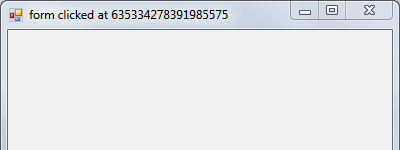
form.Show()这是窗口:

这是单击后的窗口,标题栏已更改:

现在让我们添加一个 FlowLayoutPanel 和一个按钮。
let panel = new FlowLayoutPanel()
form.Controls.Add(panel)
panel.Dock = DockStyle.Fill
panel.WrapContents <- false
let greenButton = new Button()
greenButton.Text <- "Make the background color green"
greenButton.Click.Add (fun _-> form.BackColor <- Color.LightGreen)
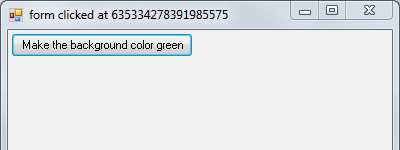
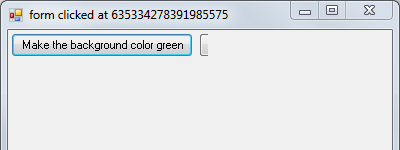
panel.Controls.Add(greenButton)现在的窗口是这样的:

但是按钮太小——我们需要将 AutoSize 设置为 true。
greenButton.AutoSize <- true这样就更好了!

让我们再添加一个黄色按钮:
let yellowButton = new Button()
yellowButton.Text <- "Make me yellow"
yellowButton.AutoSize <- true
yellowButton.Click.Add (fun _-> form.BackColor <- Color.Yellow)
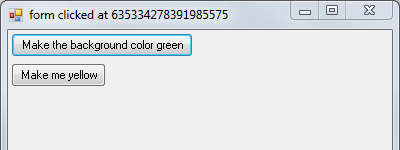
panel.Controls.Add(yellowButton)
但是按钮被切断了,所以让我们改变排列方向:
panel.FlowDirection <- FlowDirection.TopDown
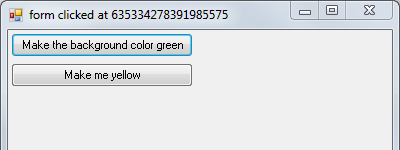
但是现在黄色按钮和绿色按钮的宽度不一样,我们可以用 Dock 解决这个问题:
yellowButton.Dock <- DockStyle.Fill
如您所见,以这种方式交互式地使用布局真的很容易。一旦您对布局逻辑感到满意,您就可以将代码转换回 C# 以用于您的实际应用程序。
这个例子是特定于 WinForms 的。当然,对于其他 UI 框架,逻辑会有所不同。
因此,这就是前四项建议。我们还没说完呢! 下一篇文章将介绍使用 F# 进行开发和编写 devops 脚本。
Last updated